The Model Router is available in AnythingLLM v1.13.0 and later.
Setting up a Model Router
The Model Router lets you send each chat message to a different LLM provider and model based on rules you define. Instead of locking a workspace to a single model, you can route math questions to a reasoning model, translations to a fast multilingual model, and legal questions to your most capable model, all from the same chat input.
This is useful when:
- You want to save money by sending simple messages to cheap models and only the hard ones to expensive models.
- You have a model that is best at one task (math, code, translation) and want to use it only when relevant.
- You want a fallback model to handle anything that doesn't match a specific rule.
Creating a Router
Open the settings page and go to AI Providers → Model Router. The first time you visit, the page will be empty.
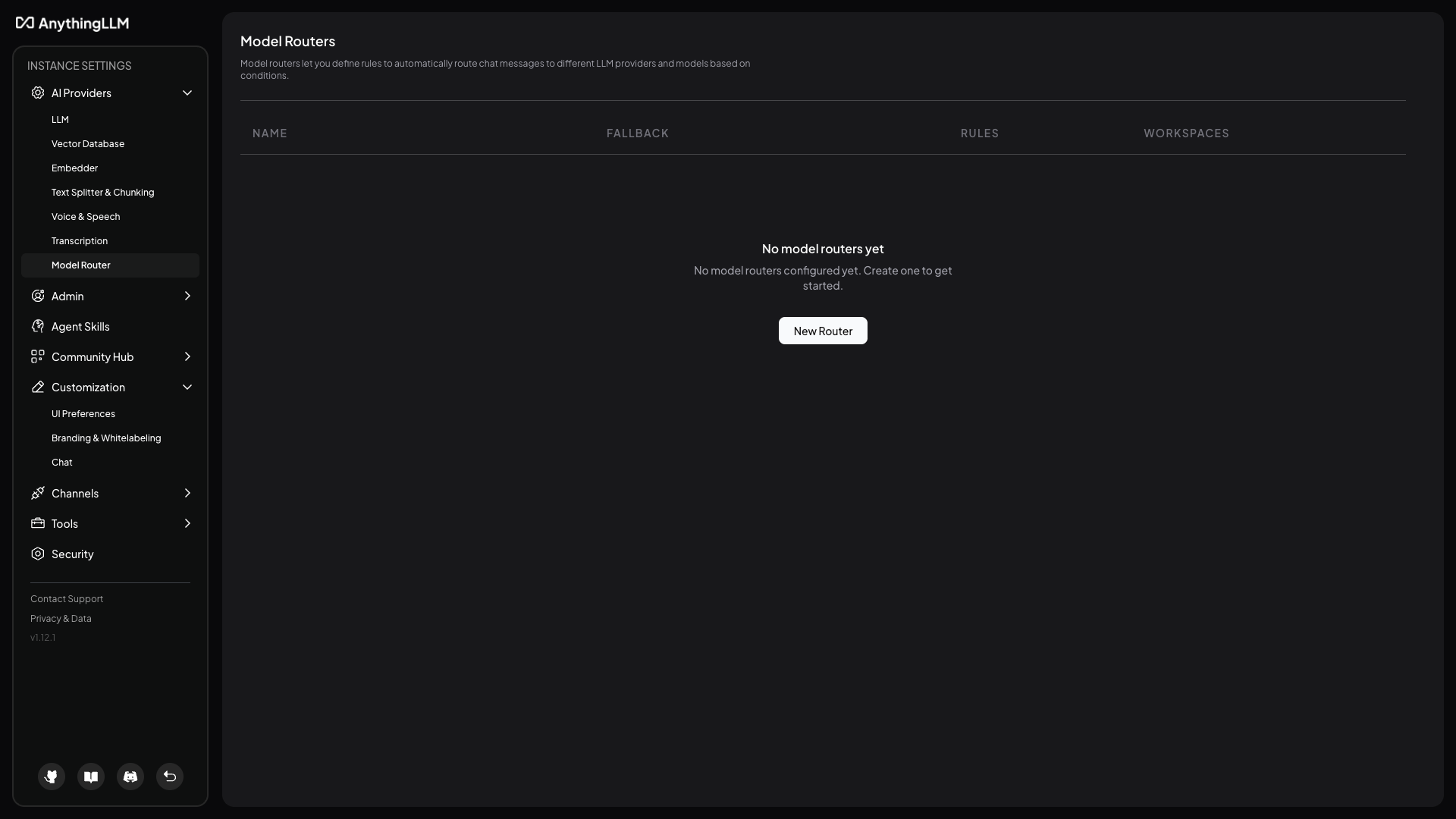
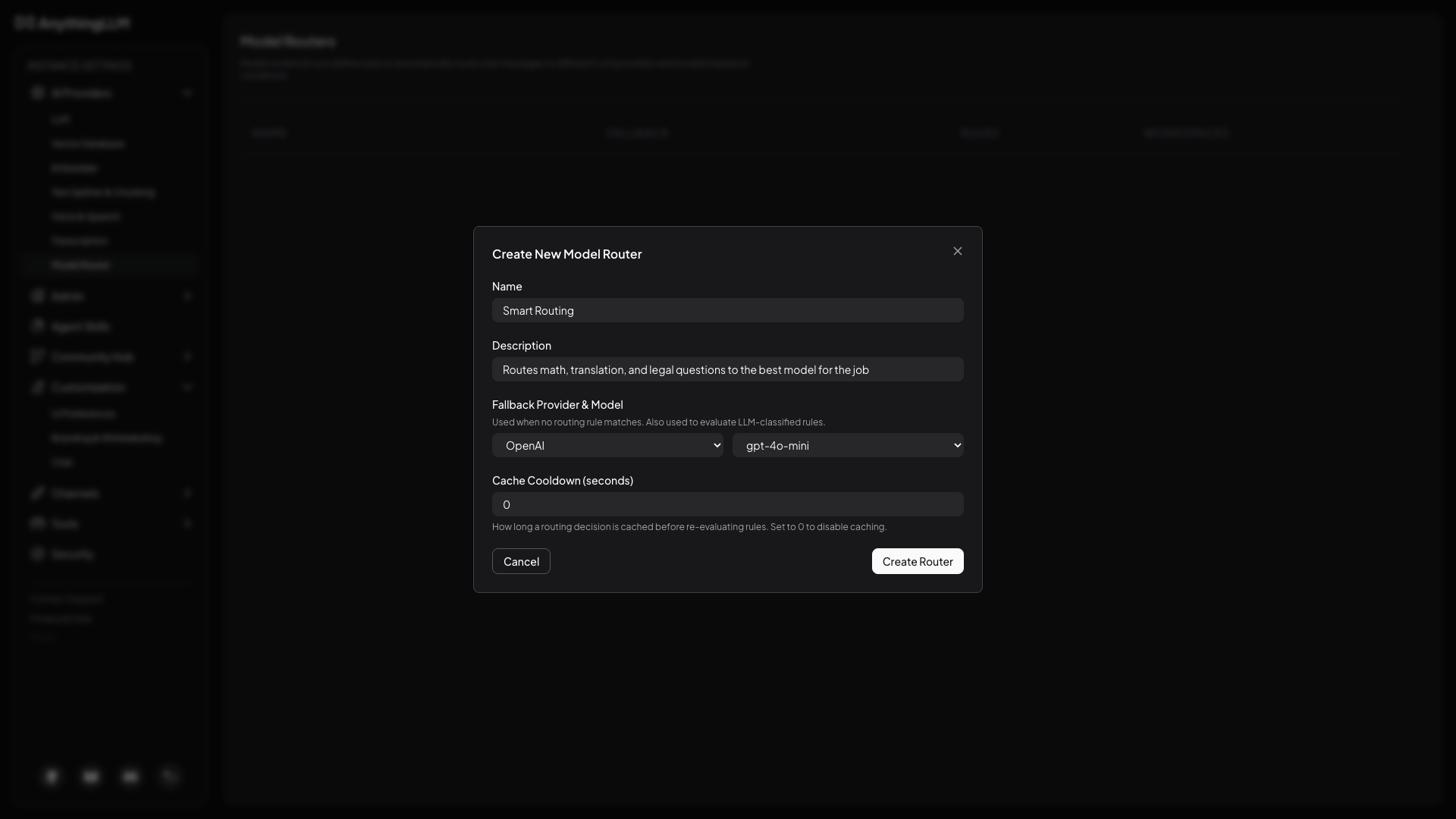
Click New Router and fill out the form:
- Name: what you want to call this router.
- Description: optional, just a short note about what the router does.
- Fallback Provider & Model: used whenever no rule matches the incoming message. This same model is also used to evaluate any LLM-classified rules (more on that below), so pick something reliable.
- Cache Cooldown (seconds): how long a routing decision is remembered for the conversation before rules are re-evaluated. Set to
0to evaluate every message.
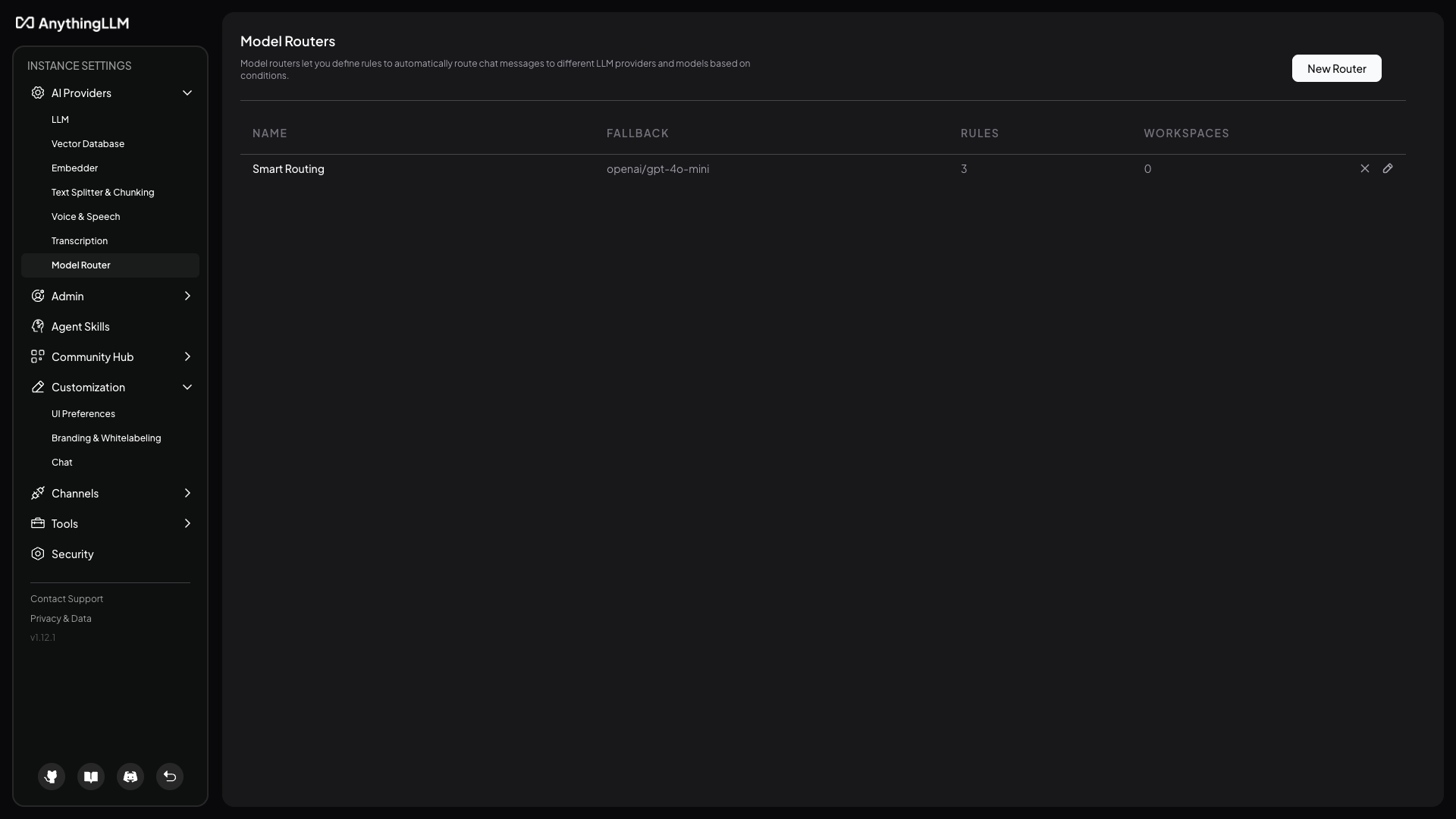
After saving, your router shows up in the list with a count of its rules and the workspaces using it.
Adding Rules
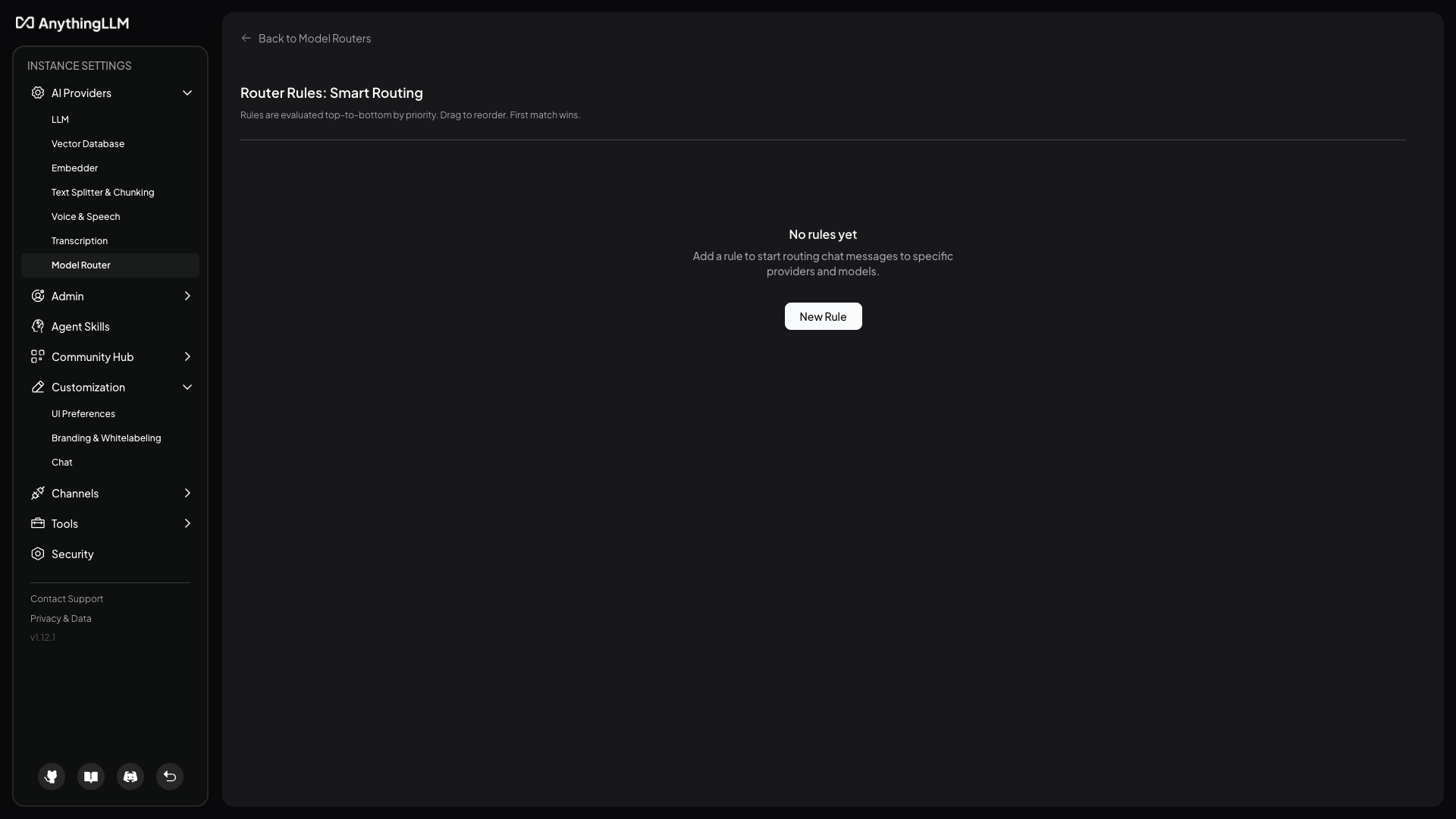
Click into your router to open the rule builder. Rules are evaluated top to bottom by priority, and the first matching rule wins. You can drag rules to reorder them.
There are two types of rules.
Calculated rules
Calculated rules match on properties of the message itself, like keywords in the prompt, total token count, message count, time of day, or whether an image is attached. These are fast and free to evaluate because they don't call an LLM.
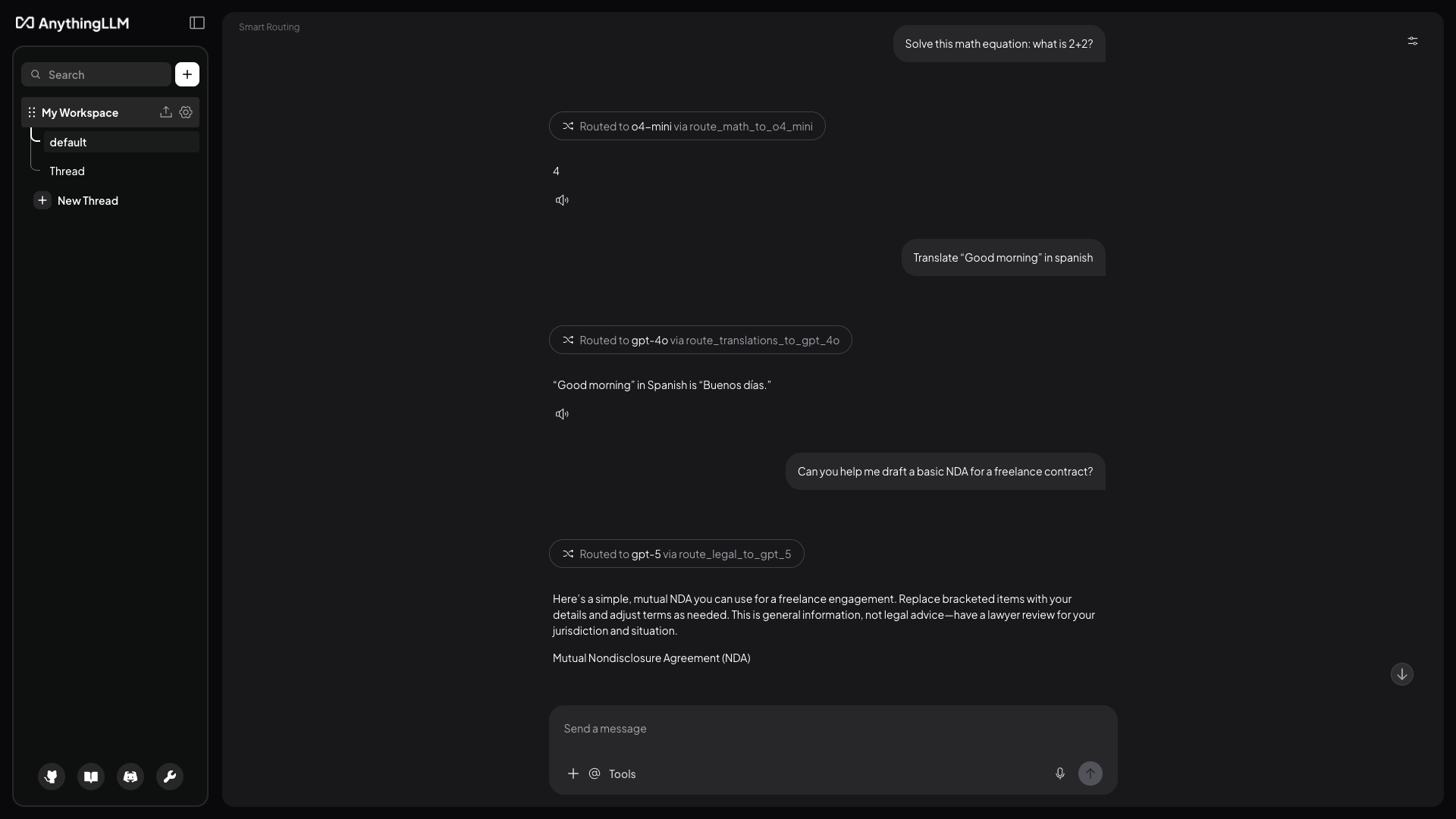
For example, here's a rule that catches math questions and routes them to OpenAI's o4-mini reasoning model:
- Title:
route_math_to_o4_mini - Rule Type: Calculated
- Property: Prompt Content
- Comparator: contains
- Value:
math, mathematics, equation, calculate, solve - Route to: OpenAI /
o4-mini
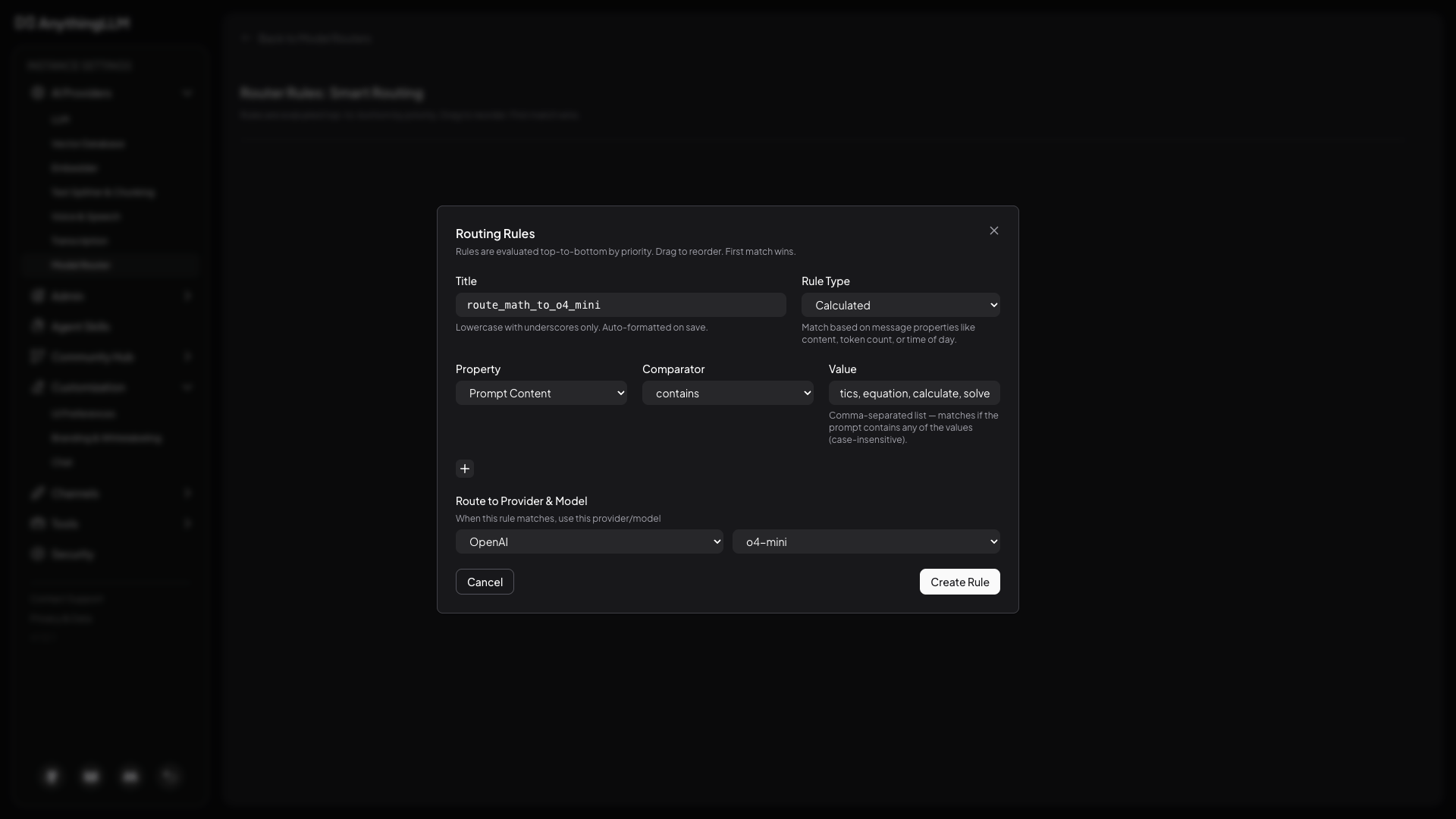
When the comparator is contains, the value is a comma-separated list and matching is case-insensitive. The rule fires if the prompt contains any of the values.
You can also add multiple conditions to a single rule and toggle between AND and OR logic by clicking the badge between conditions.
LLM-classified rules
Sometimes you can't catch a topic with keywords alone. For these cases, use an LLM Classified rule. You write a plain-English description of when the rule should match, and the router's fallback model reads each incoming message and decides whether it fits.
For example, a rule that catches legal questions:
- Title:
route_legal_to_gpt_5 - Rule Type: LLM Classified
- Match Description:
The user is asking for help with legal documentation, contracts, terms of service, compliance, or any law-related topic - Route to: OpenAI /
gpt-5
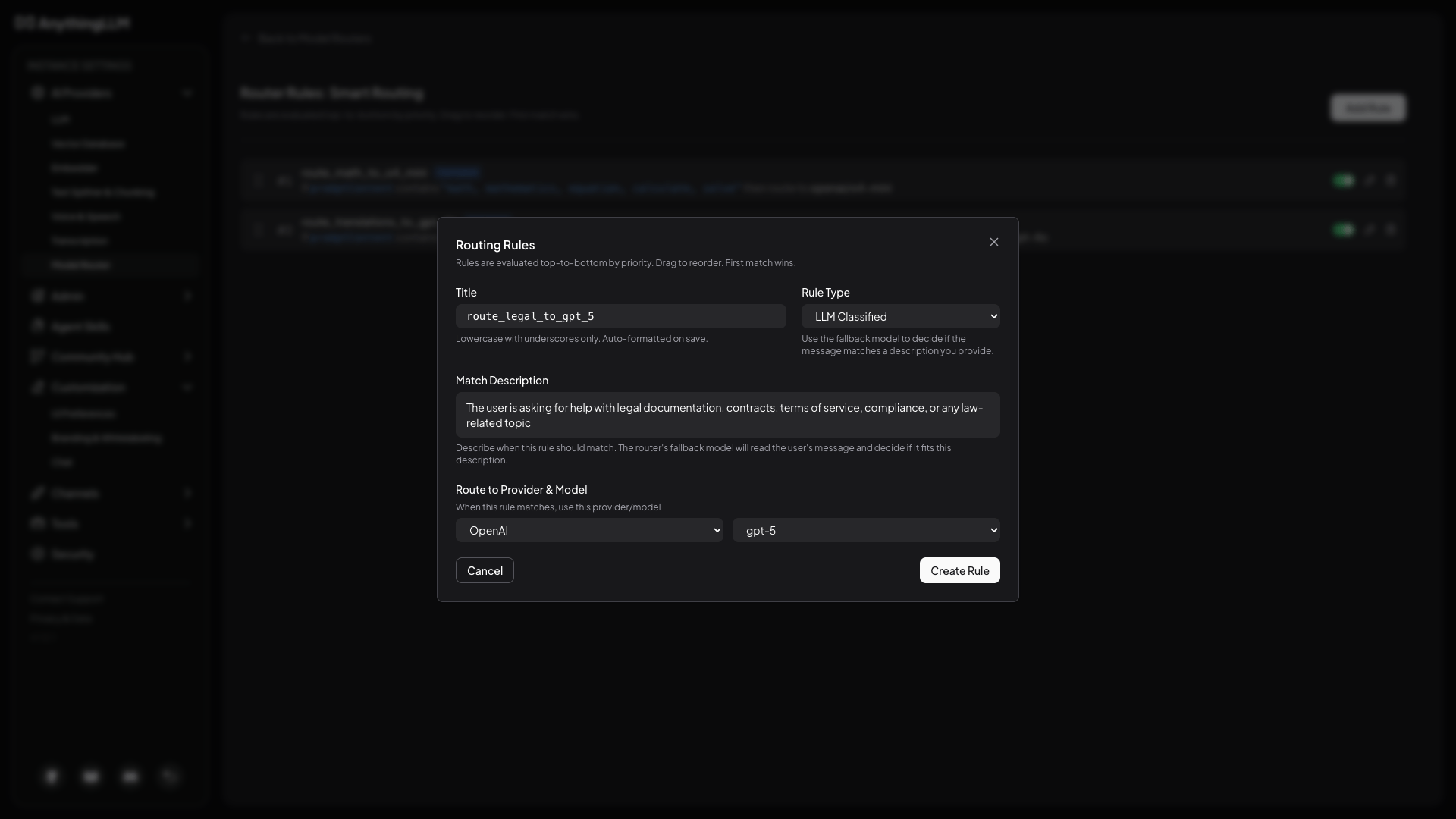
LLM-classified rules add one extra LLM call per message (the classification step) using your router's fallback model. Use them when keyword matching isn't enough, and prefer a fast, cheap fallback model so the classification doesn't add noticeable latency.
Putting it all together
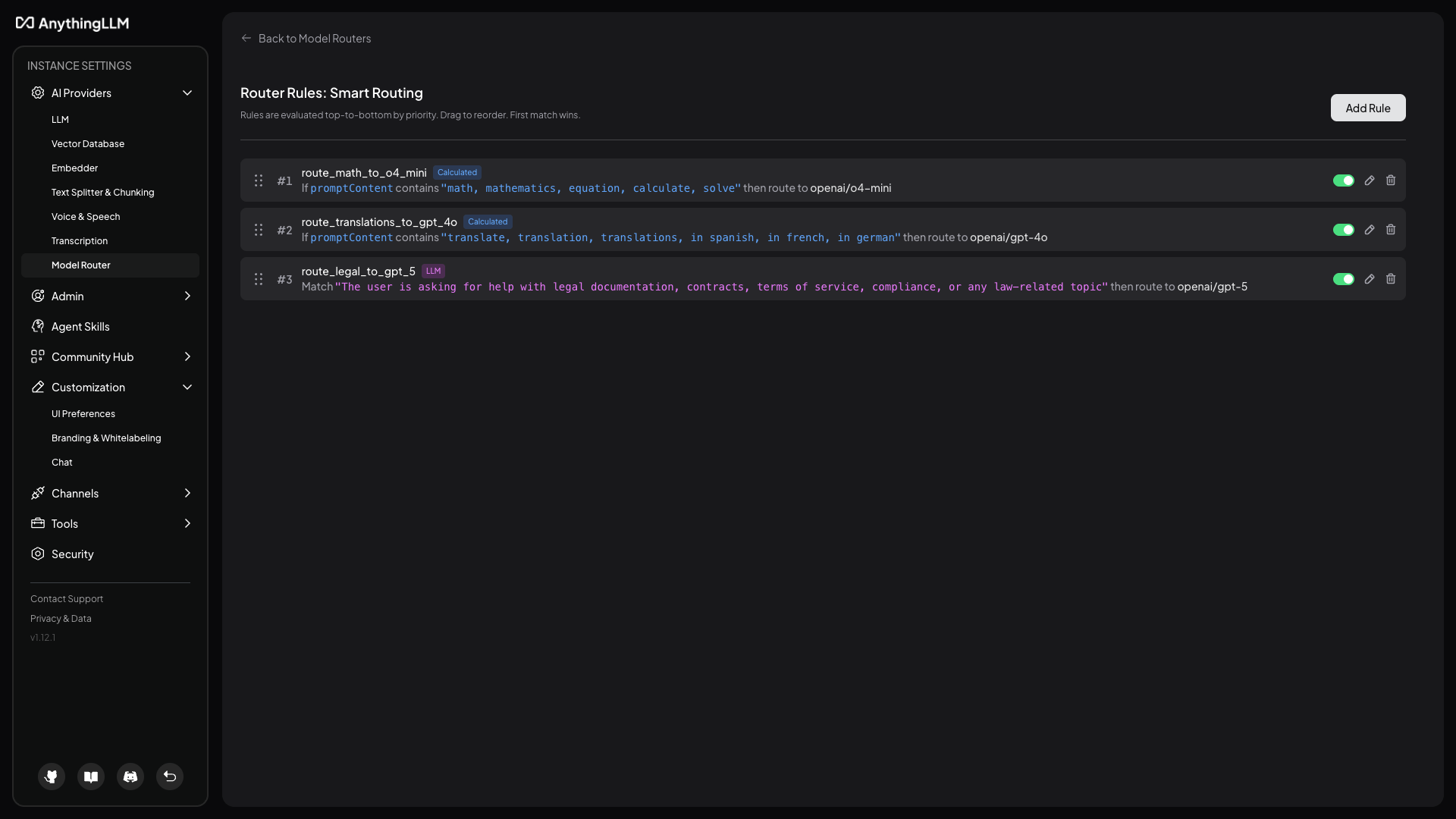
With three rules in place, the router will:
- Send anything that mentions math to
o4-mini. - Send anything that mentions translation or another language to
gpt-4o. - Send anything the fallback model classifies as a legal question to
gpt-5. - Send everything else to the fallback model (
gpt-4o-mini).
Using a router
Once a router exists, it shows up as its own provider in the LLM Provider picker where you can select it and use it in your workspace.
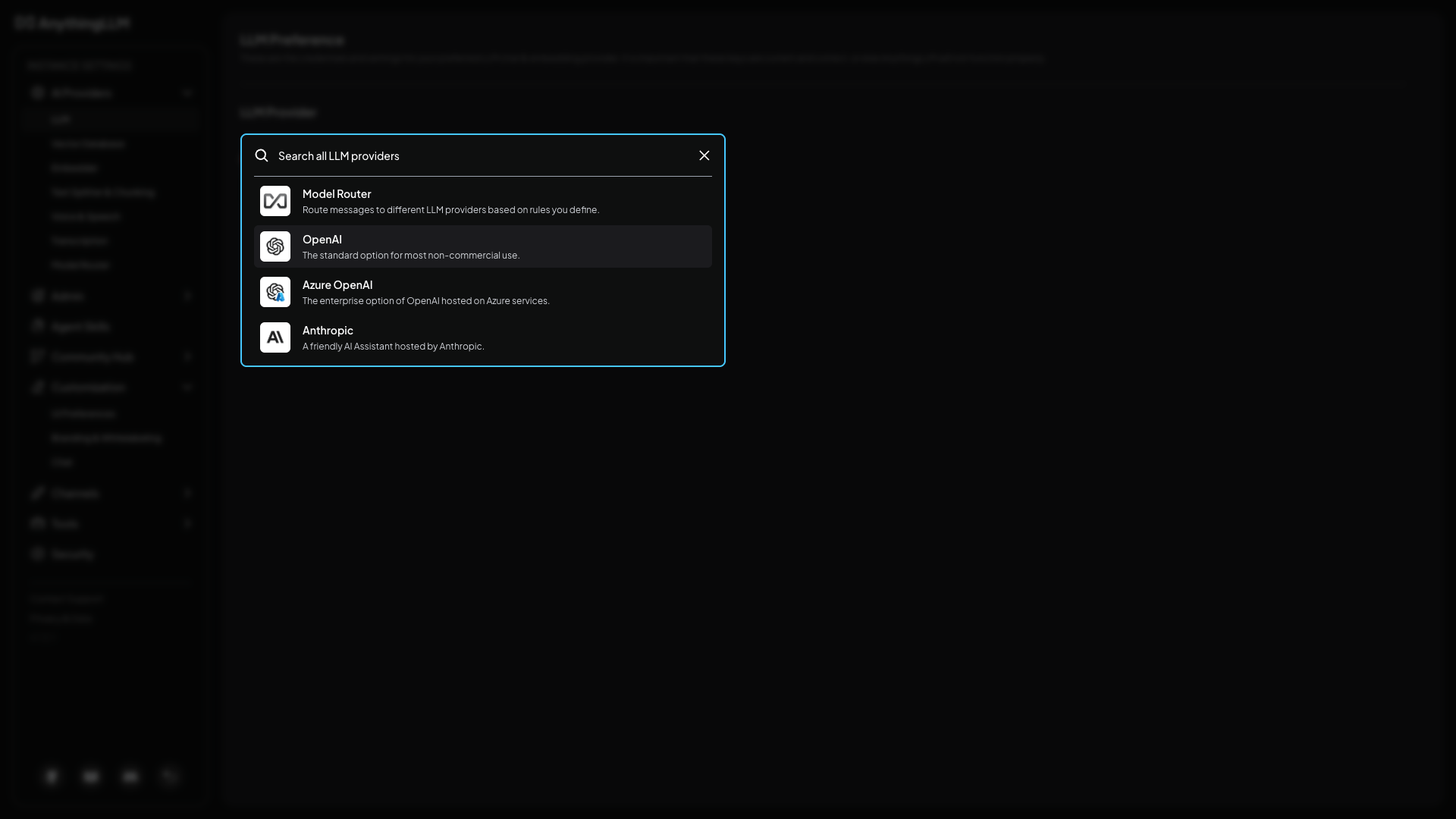
From then on, every message will be evaluated against your rules and a small badge above each response will show which model and rule handled it.
Cooldowns and Caching
Obviously, having the router evaluate every message would be too slow and expensive and also be very annoying if you were being bounced around between models every chat! To solve this, AnythingLLM implements an advanced cooldown and caching system that we believe serves an ideal balance of performance and user experience.
The router uses a two-layer caching strategy:
- LLM classification cache — prevents expensive LLM calls on every message. When an LLM rule evaluation occurs, the result is cached for the duration of the sticky window.
- Sticky route — when a rule matches, that model "sticks" so follow-up messages that don't match any rule stay on the same model instead of bouncing back to the fallback.
Evaluation flow
This is the logic that happens behind the scenes on every message:
- Evaluate calculated rules — these are always re-evaluated since they are instant (regex, keyword matching, token counts, etc). If a calculated rule matches, route to that model immediately.
- Evaluate LLM rules (with cache) — if no calculated rule matched, check the LLM classification cache. If there's a cached result, use it. If not, call the LLM to classify the message against all LLM rules and cache the result.
- Check sticky route — if no rule matched at all, check if a previous rule match is still within the sticky window. If so, keep using that model.
- Fall back to default — if the sticky route has expired and no rules matched, use the fallback (primary) model.
TTL and timing
All caching is purely time-based — no additional model or service is used for cache invalidation.
- Sticky window: Defaults to 5 minutes. This is the cooldown period configured in your router settings. When a rule matches, the routed model stays active for this duration. The timer resets on every message that uses the sticky route, so continuous conversation keeps the same model active.
- LLM "match" cache: When the LLM classifies a message and finds a matching rule, that result is cached for the full sticky window (5 minutes by default).
- LLM "no match" cooldown: When the LLM classifies a message but finds no matching rule, the "no match" result is only cached for 30 seconds. This short cooldown avoids spamming the LLM with repeated calls on rapid messages, while still re-evaluating quickly when the conversation topic changes.
Why this matters
This design means:
- You won't be bounced between models on every message — once a model is selected, it stays for the sticky window.
- Calculated rules (keywords, regex, token thresholds) are always checked first and are free to evaluate.
- LLM classification only happens when the cache expires, keeping overhead low.
- If you change topics after the short 30s "no match" cooldown, the router will re-evaluate and potentially route to a different model.
Since LLM-evaluated rules are more complex and expensive to evaluate, we are very careful about how often we call the LLM so that your responses remain fast and responsive, but you are still able to use this "semantic" routing to save money and get the best model for the job without complex rulesets.