Gmail Agent
This agent skill is only available in AnythingLLM v1.12.1 and later.
This skill is only available in single-user mode. It will not be visible in multi-user mode.
Tip: Any read-only actions will not ask for approval, but any actions that could potentially modify your inbox in any way will ask for approval so nothing can be modified without your explicit permission.
Any skill below that has the ✏️ icon next to it will ask for approval before performing the action.
The Gmail Agent skill allows your LLM to interact with your Gmail account. It can search emails, read messages and threads, compose and send emails, manage drafts, and organize your inbox.
Setup
Setup of the Gmail Agent skill is much easier than other applications you may have used in the past, since we do not want to inconvenience you by setting up a Google Cloud Project and OAuth2 credentials.
Instead, we will use a simple Google App Script (opens in a new tab) you can simply copy and paste to provide the same functionality. Google App Scripts are 100% free and have very generous usage limits for your usage.
Grab the script
You can grab the open-source script designed for AnythingLLM from our GApps Github Repository (opens in a new tab).
Paste the script into the Google App Script editor
Open the Google App Script editor (opens in a new tab) click on the "New Project" button.
Click on the "Untitled Project" and give it a name like "AnythingLLM Gmail Bridge".
Paste the script you copied from the Github Repository into the Code.gs file. This should overwrite the existing script text if any exists.
IMPORTANT
Edit the line near the top of the script that says const API_KEY = "CHANGE_ME_TO_SOMETHING_SECURE"; and replace CHANGE_ME_TO_SOMETHING_SECURE with a unique and random string
of your choice. This is used as an additional layer of security to authenticate your script with only AnythingLLM.
Once you have edited the API_KEY click on the "Deploy > New deployment" button.
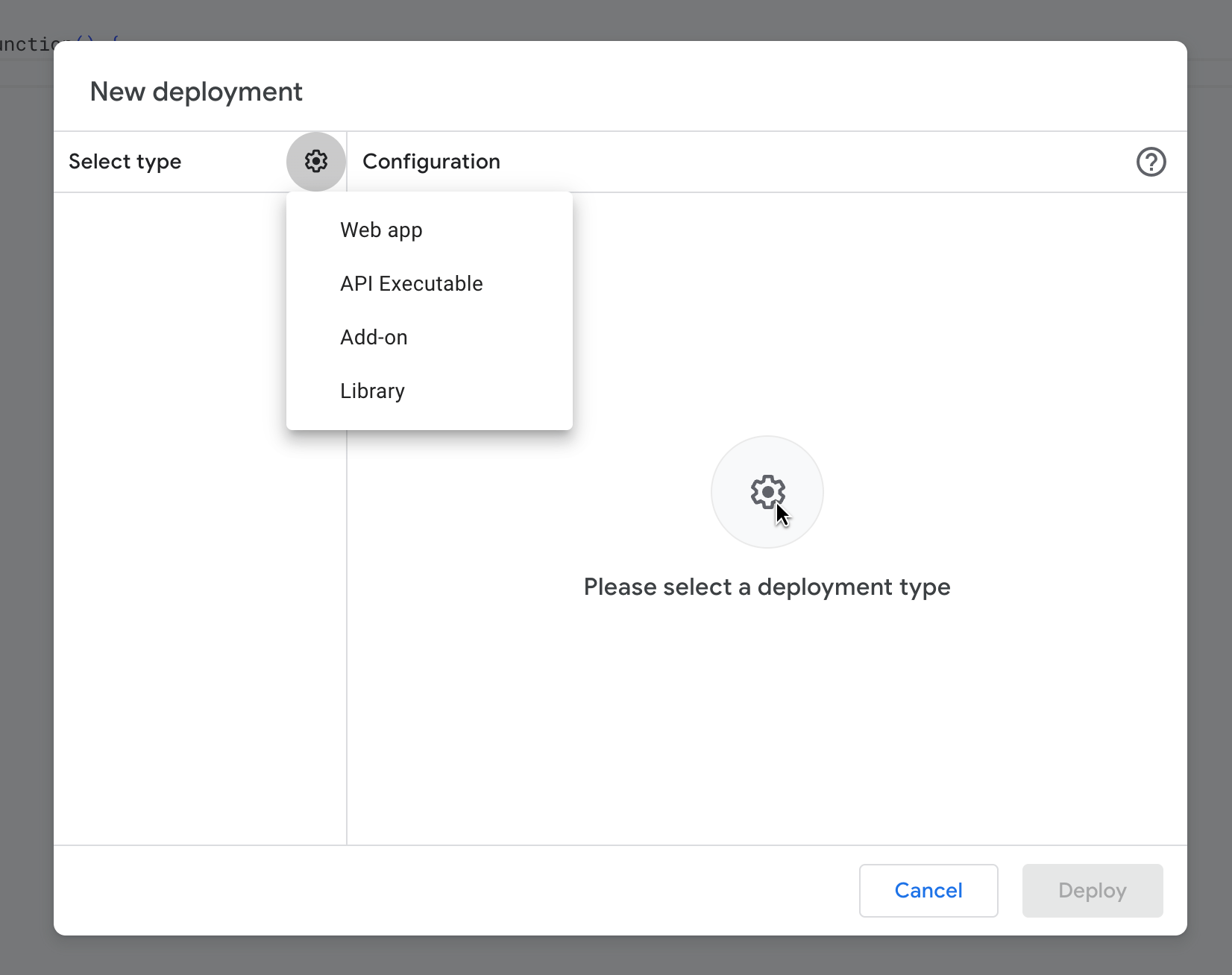
On the "Select Type" side of the panel, click on the gear icon and select "Web App".
Ensure your "Execute as" is set to "Me" and "Who has access to the app" is set to "Anyone".
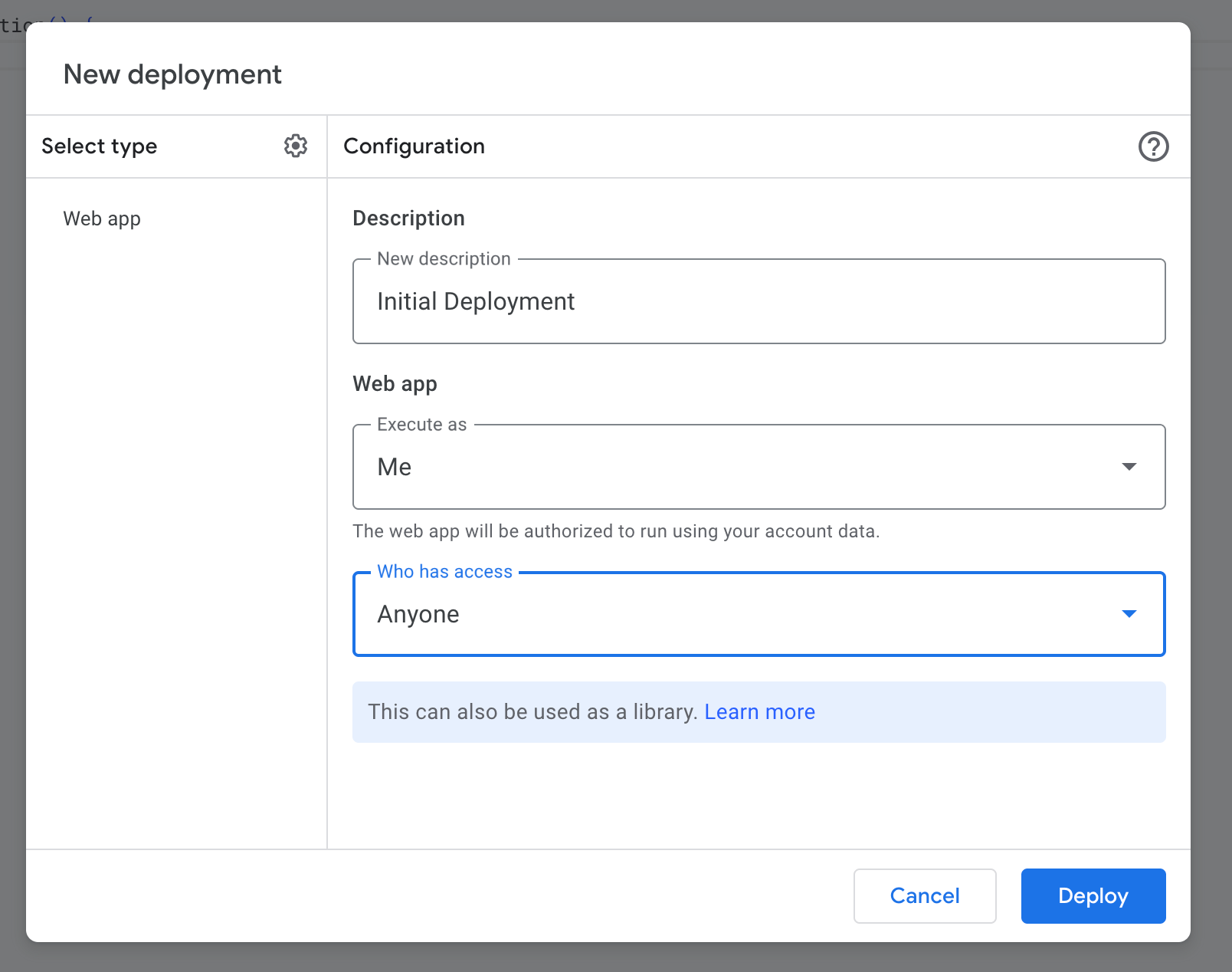
Click on the "Deploy" button! You will then be prompted to authorize the script to access your Gmail account. Click on the "Review Permissions" button and configure the permissions as needed or desired for what you want the agent to be able to do.
You will see a popup with the Deployment Id of the new deployment. Copy this Id and paste that into the "Deployment ID" field in the AnythingLLM configuration page along with the API_KEY you edited earlier.
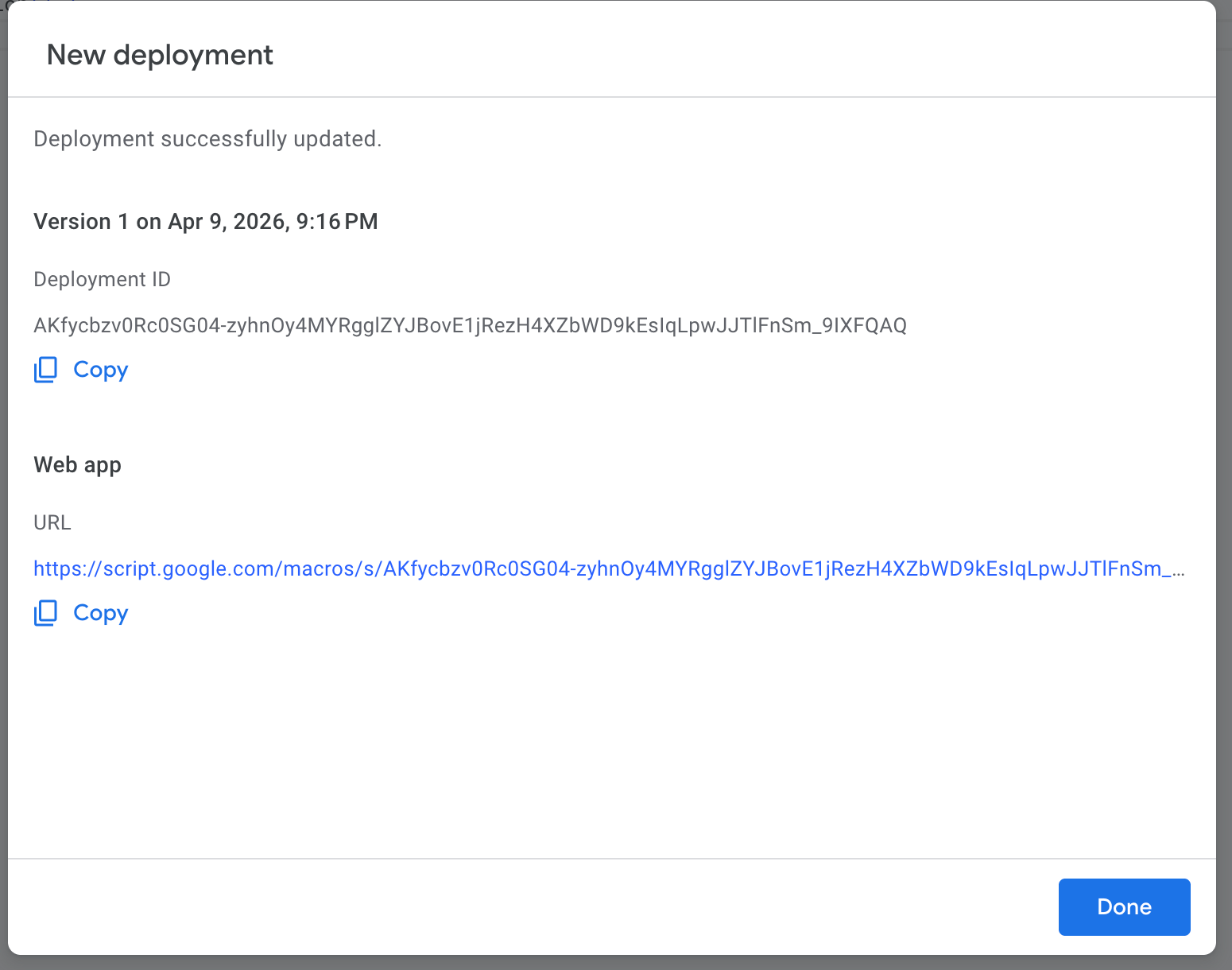
Dont worry, if you mess up, you can always edit the script and redeploy it!
NOTE: Once you deploy, you may have to wait a few minutes for the deployment to be fully activated.
Capabilities
The Gmail Agent provides a comprehensive set of tools organized into the following categories:
Search & Read
These tools allow the agent to search and read your emails without making any changes.
A note on attachments
If your email has attachments, the agent will be able to download the attachments and use them in context. You will be asked before the agent downloads any attachments so you can curate which attachments are used in context.
Gmail Search
Search emails using Gmail's powerful query syntax. Supports keywords and operators like:
is:inbox,is:unread,is:starredfrom:email,to:emailsubject:wordhas:attachmentnewer_than:7d,older_than:1m
The agent can combine operators with search terms, e.g., is:inbox meeting notes finds inbox emails containing "meeting notes".
Example: @agent search for unread emails in my inbox about the project
Gmail Read Thread
Read a full email thread by its ID. Returns all messages in the conversation including sender, recipients, subject, body, date, and attachment information.
Example: Can you read the email about the project update? -> will find thread by search and read it.
Drafts
These tools allow the agent to create, manage, and send draft emails.
Create Draft ✏️
Create a new draft email. Supports:
- Multiple recipients (To, CC, BCC)
- Plain text and HTML body content
- File attachments (up to 20MB total)
Example: @agent create a draft email to john@example.com about the meeting tomorrow
Create Draft Reply ✏️
Create a draft reply to an existing email thread. You can choose to reply to just the sender or reply all.
Example: @agent create a draft reply to thread 18abc123def thanking them for the update
Update Draft ✏️
Update an existing draft email with new content, recipients, or attachments.
Example: @agent update draft r123456 to change the subject to "Updated: Meeting Tomorrow"
Get Draft
Retrieve a specific draft email by its ID to view its current content.
Example: @agent show me the draft with ID r123456
List Drafts
List all draft emails in your Gmail account. Returns a summary of each draft including ID, recipient, subject, and date.
Example: @agent list my email drafts
Delete Draft ✏️
Permanently delete a draft email. This action cannot be undone.
Example: @agent delete the draft with ID r123456
Send Draft ✏️
Send an existing draft email immediately. This removes the draft and sends the email.
Example: @agent send the draft with ID r123456
Send & Reply
These tools send emails immediately without creating drafts first.
Send Email ✏️
Send an email immediately. Supports:
- Multiple recipients (To, CC, BCC)
- Plain text and HTML body content
- Reply-To address
- File attachments (up to 20MB total)
Example: @agent send an email to john@example.com about the project update
Reply to Thread ✏️
Reply to an existing email thread immediately. You can choose to reply to just the sender or reply all. Supports file attachments.
Example: @agent reply to thread 18abc123def saying I agree with the proposal
Thread Management
These tools help you organize and manage your email threads.
Mark as Read ✏️
Mark an email thread as read. This marks all messages in the thread as read.
Example: @agent mark thread 18abc123def as read
Mark as Unread ✏️
Mark an email thread as unread so it appears as a new message.
Example: @agent mark thread 18abc123def as unread
Move to Trash ✏️
Move an email thread to trash. The thread can be recovered from trash within 30 days.
Example: @agent move thread 18abc123def to trash
Move to Archive ✏️
Archive an email thread. The thread is removed from inbox but can still be found in All Mail or by searching.
Example: @agent archive thread 18abc123def
Move to Inbox ✏️
Move an email thread back to inbox. Use this to unarchive a thread or move it from other locations.
Example: @agent move thread 18abc123def to inbox
Account
These tools provide information about your Gmail account.
Get Mailbox Stats
Get Gmail mailbox statistics including unread counts for:
- Inbox
- Priority Inbox
- Starred messages
- Spam folder
- Remaining Quote for sending emails
Example: @agent how many unread emails do I have?
Update the script
If you ever need to update the script to sync with the latest version of script, you can do the following:
- Go to the Google App Script editor (opens in a new tab)
- Click on the "AnythingLLM Gmail Bridge" project or the project name you gave it when you created it.
- Click on the "Code.gs" file.
- Edit the script and click on the "Deploy > Manage deployments" button.
- Click on the "Pencil" icon to edit the script.
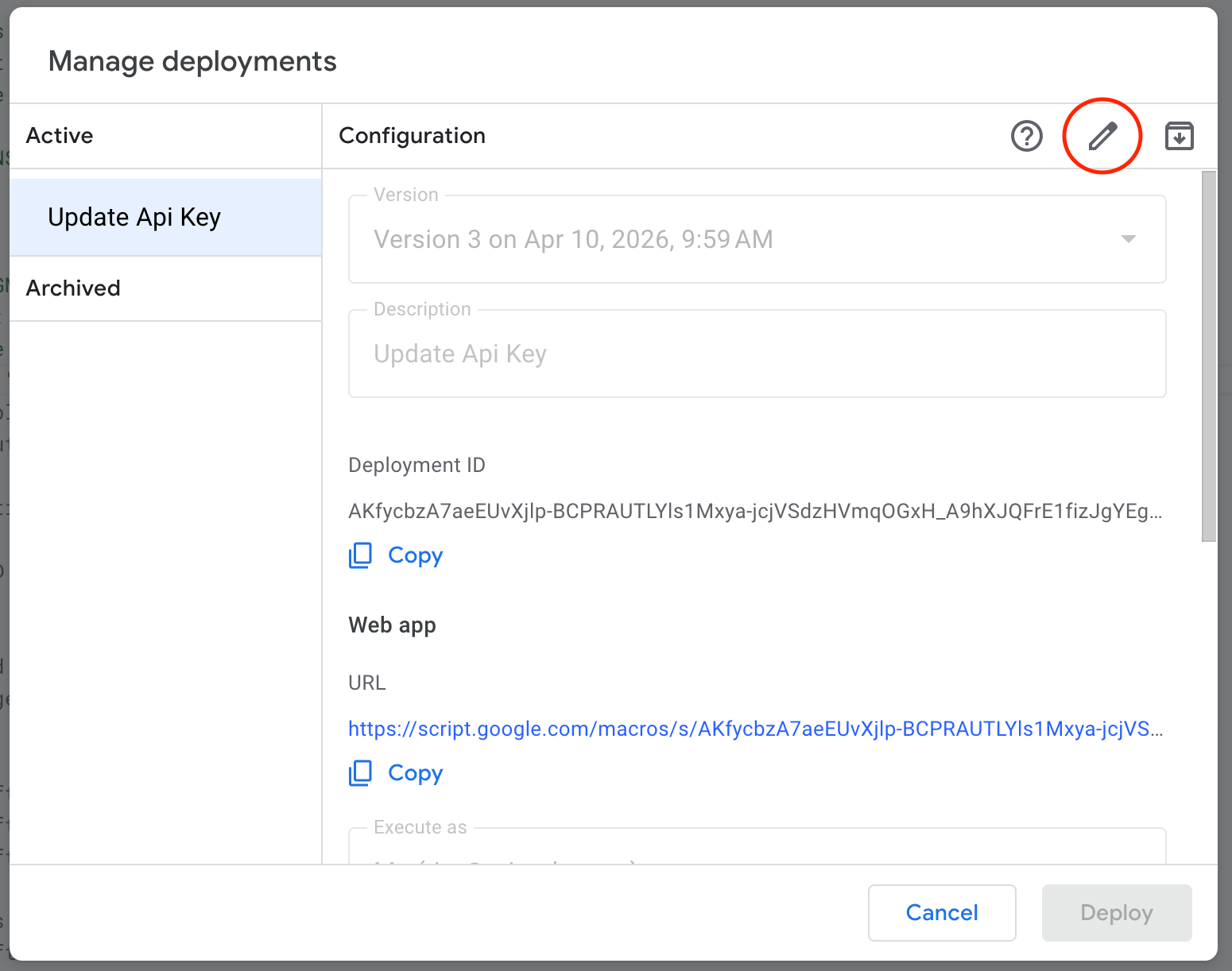
- In the first dropdown, select "New Version" and give is some short description.
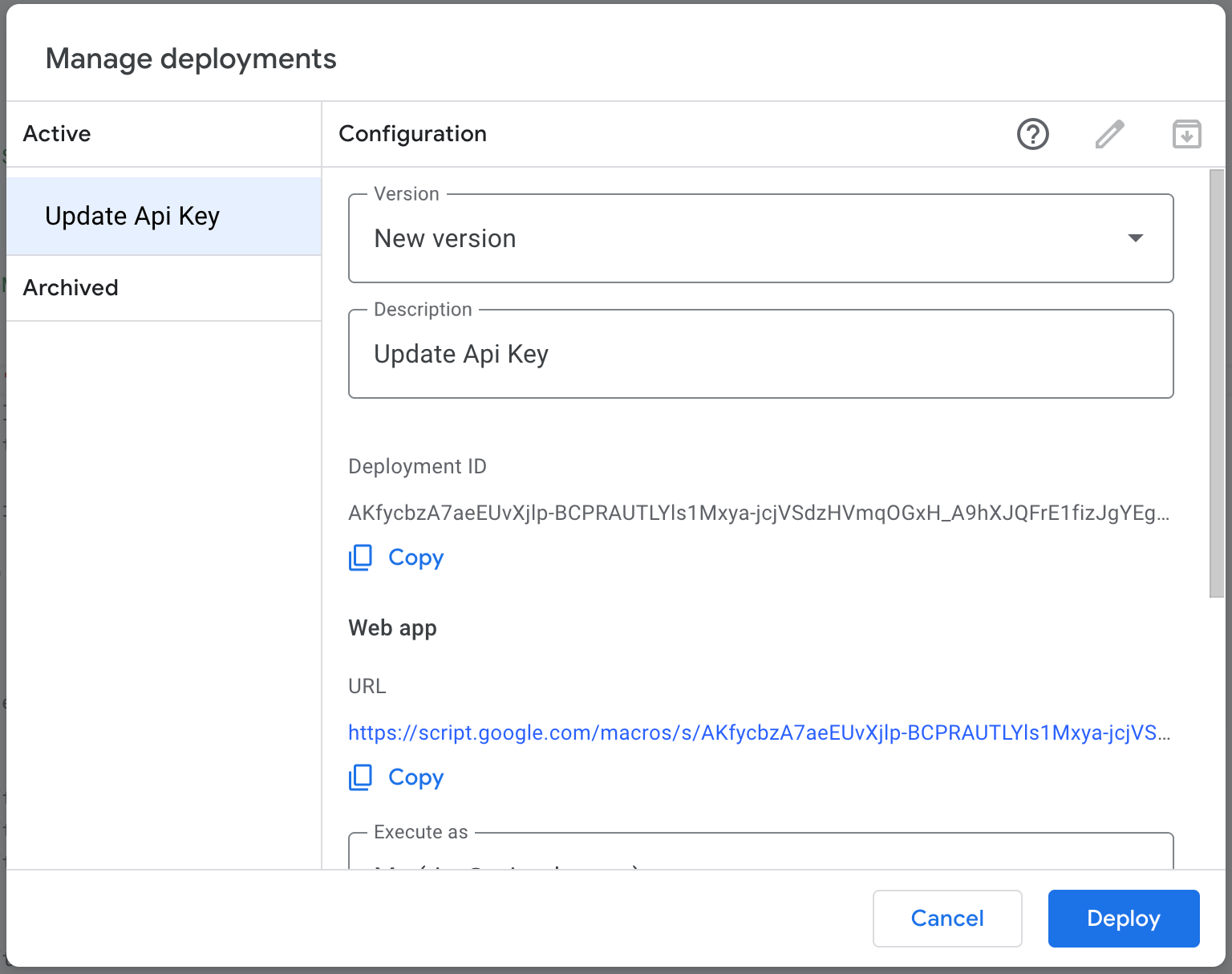
- Click Deploy New Version!
When updating, you don't need to update AnythingLLM's configuration page, it will automatically point to the new version of the script.
Delete the app connection
If you ever need to delete the app connection, you can do the following:
- Go to the Google App Script editor (opens in a new tab)
- Click on the "AnythingLLM Gmail Bridge" project or the project name you gave it when you created it.
- Click on the "Deploy > Manage deployments" button.
- Click on the "Archive" button for the deployment(s).
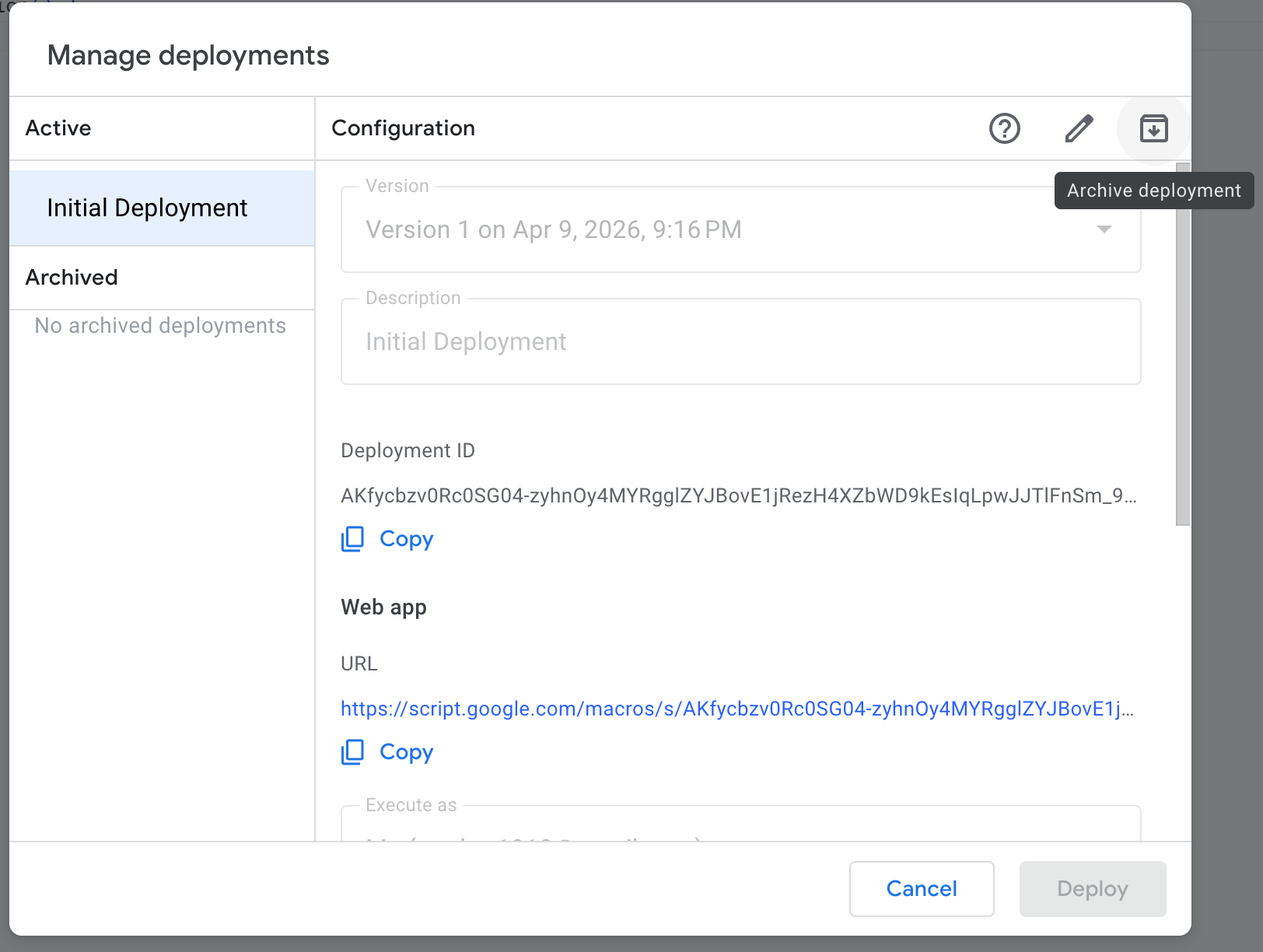
- You can now delete the project by clicking on the "Delete" button in the "Project Settings" page.