Magic Beacon is an AnythingLLM Pro feature with a free daily usage tier. It is available in AnythingLLM Desktop for macOS and Windows.
Magic Beacon is only available on AnythingLLM Desktop v1.15.0 and later.
Magic Beacon
Magic Beacon is an on-screen AI tool that lets you highlight text anywhere on your computer and instantly take action on it — revise, research, summarize, translate, or ask questions — without ever leaving the app you're working in.
How it works
- Highlight text in any application — an email, a document, a webpage, a code editor, anything.
- A small beacon dot appears near your selection.
- Click the dot (or interact with it) to open the Magic Beacon panel.
- Choose a Quick Action or type a custom prompt to process the highlighted text.
- The response appears inline — you can insert it directly (in editable fields) or copy it to your clipboard.
Magic Beacon uses your local LLM to process everything, so it works fully offline and your data never leaves your machine.
Quick Actions
Magic Beacon comes with two categories of configurable Quick Actions that appear when you highlight text:
Edit Actions
These appear when you highlight text in editable fields (text inputs, text areas, code editors, etc.). The response can be inserted directly to replace the selected text.
Default edit actions typically include things like fixing grammar, making text more professional, simplifying language, and more.
Static Actions
These appear when you highlight non-editable text (web pages, PDFs, rendered documents, etc.). The response can be copied to clipboard.
Default static actions typically include summarizing, explaining, translating, and researching the selected text.
Customizing Quick Actions
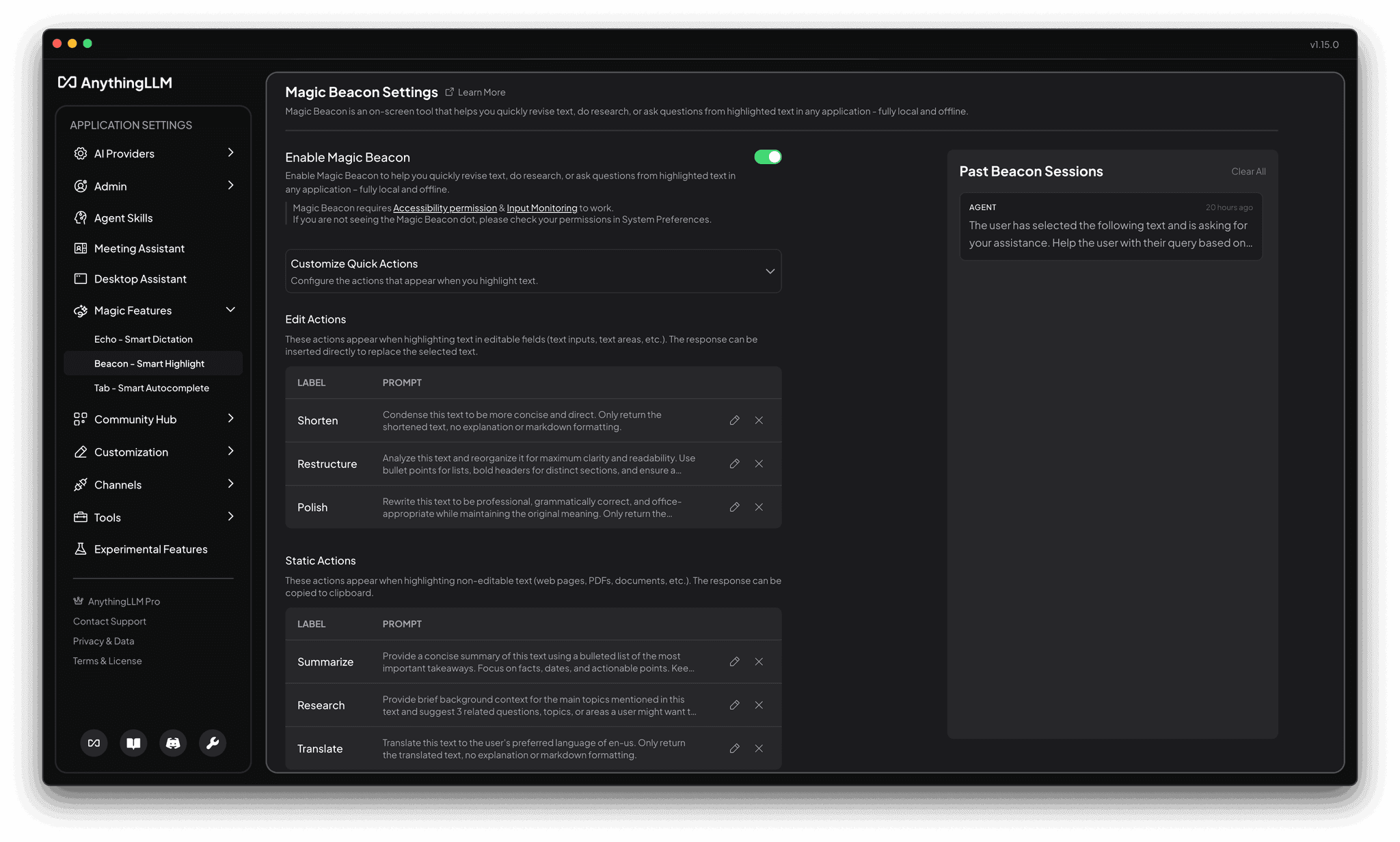
You can fully customize Quick Actions in Settings → Magic Beacon → Customize Quick Actions:
- Add, edit, or remove actions for both Edit and Static categories
- Each action has a Label (what you see in the menu) and a Prompt (the instruction sent to the LLM along with your highlighted text)
- Reset to defaults at any time
Use cases
Magic Beacon shines in workflows where you're constantly switching between reading and acting on text:
- Writing & editing — Highlight a paragraph and ask to rephrase, shorten, or make it more formal
- Research — Highlight a technical term or passage and ask for an explanation or deeper context with agentic search capabilities
- Code review — Highlight a code snippet and ask what it does, or request improvements
- Email triage — Highlight an email and get a quick summary or draft a reply
- Translation — Highlight text in any language and get an instant translation
- Learning — Highlight unfamiliar text and ask questions about it
Agent & Chat Modes
Magic Beacon sessions can operate in different modes:
- Chat — Simple question and response about the highlighted text
- Agent — Uses your configured agent skills, MCPs, and tools for more complex tasks (like generating files, running searches, etc.)
Past sessions show which mode was used and can include generated files and sources.
Ignored Apps
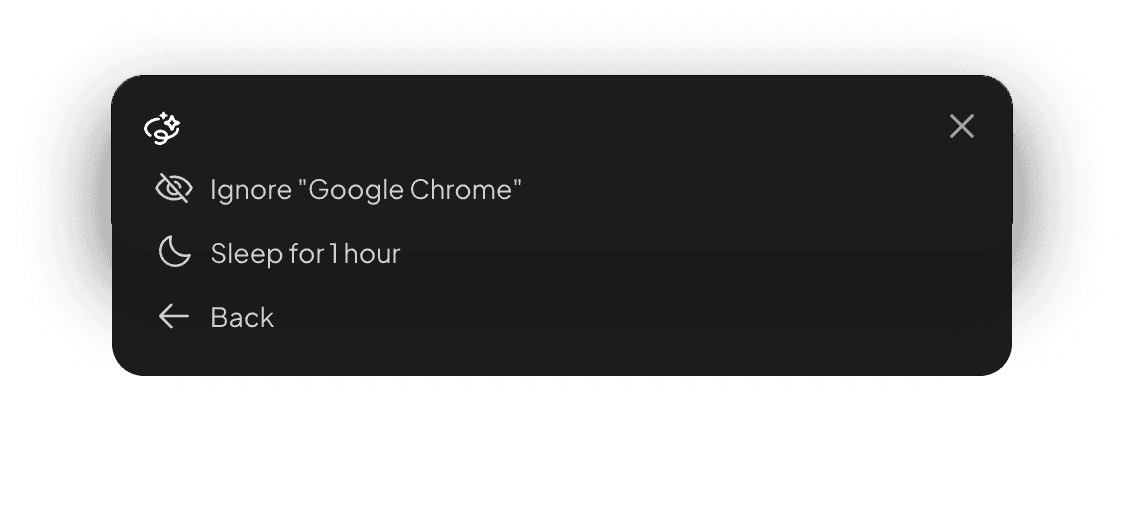
If Magic Beacon is distracting in certain applications, you can dismiss it with "Ignore this app" from the options menu in the widget. Ignored apps are managed in Settings → Magic Beacon → Ignored Apps, where you can remove apps from the ignore list at any time.
Past Beacon Sessions
Every Magic Beacon interaction is saved and viewable in the Past Beacon Sessions panel on the settings page. Each session includes:
- The input text and prompt
- The AI-generated output
- Any generated files or sources
- Whether it was a Chat or Agent session
Settings & Configuration
Navigate to Settings → Magic Beacon to configure:
| Setting | Description |
|---|---|
| Enable Magic Beacon | Toggle the feature on or off |
| Quick Actions | Customize the actions available for editable and static text selections |
| Ignored Apps | Manage which applications should not trigger Magic Beacon |
Platform Requirements
- macOS: Requires Accessibility permission for text highlighting detection. You'll be prompted to grant this on first use. See MacOS permissions & Troubleshooting for more details.
- Windows: No special permissions required.
- Linux: Not currently supported.
Privacy
All processing is done on device using your configured LLM provider and model. The highlighted text is sent to your provider for processing — if you're using a local model, nothing ever leaves your machine. If you're using a cloud provider, the text is sent under the terms of that provider's privacy policy.
Free Tier & Pro
Magic Beacon includes a daily allowance of free invocations.
With AnythingLLM Pro, Beacon invocations become unlimited. Get your Pro key to remove all daily limits.
MacOS permissions & Troubleshooting
Due to how MacOS stores permissions, sometimes just flicking the switch on the Privacy & Security settings window seems to not take effect. In this case, you can try the following:
- Quit AnythingLLM fully.
- Open the Privacy & Security settings window and add an entry for AnythingLLM for
Input MonitoringandAccessibilitypermissions. - Restart AnythingLLM.
- Go to Magic Beacon settings, disable the feature and re-enable it.
- Now open an application and highlight some text. If the feature is working, you should see a beacon dot appear near the selection by your cursor.
Permissions required
Input Monitoringpermission is required to detect text highlighting in any application.Accessibilitypermission is required to detect text highlighting in any application.